Using JupyterLab on the VHPC
Overview
The recommended way to run JupyterLab on the VHPC is through Open OnDemand.
Open OnDemand launches Jupyter as a Slurm job on a VHPC compute node and provides a browser-based connection to the running session. No manual SSH tunneling, port forwarding, or token handling is required.
Open OnDemand also provides several preconfigured system Jupyter kernels for common scientific and machine-learning workloads.
Note
The older ksu-jupyter-lab command-line workflow is still available for users who prefer the legacy SSH-tunneling method.
Before You Begin
You must be connected to the KSU VPN-Groups service before accessing Open OnDemand.
You'll need to connect to our VPN to access the Kennesaw State University VHPC. To begin, open your web browser to vpn-groups.kennesaw.edu, then install the appropriate GlobalProtect VPN client for your computer.
Warning
If you already have a GlobalProtect VPN client installed, make
sure you have a connection for vpn-groups.kennesaw.edu, not
vpn.kennesaw.edu. Using the vpn.kennesaw.edu gateway
will not allow you to access the VHPC.
Open Open OnDemand at:
https://ondemand.kennesaw.edu
Sign in with your Kennesaw State University NetID.
Launch Jupyter
From the Open OnDemand navigation bar:
- Open Interactive Apps.
- Select Jupyter.
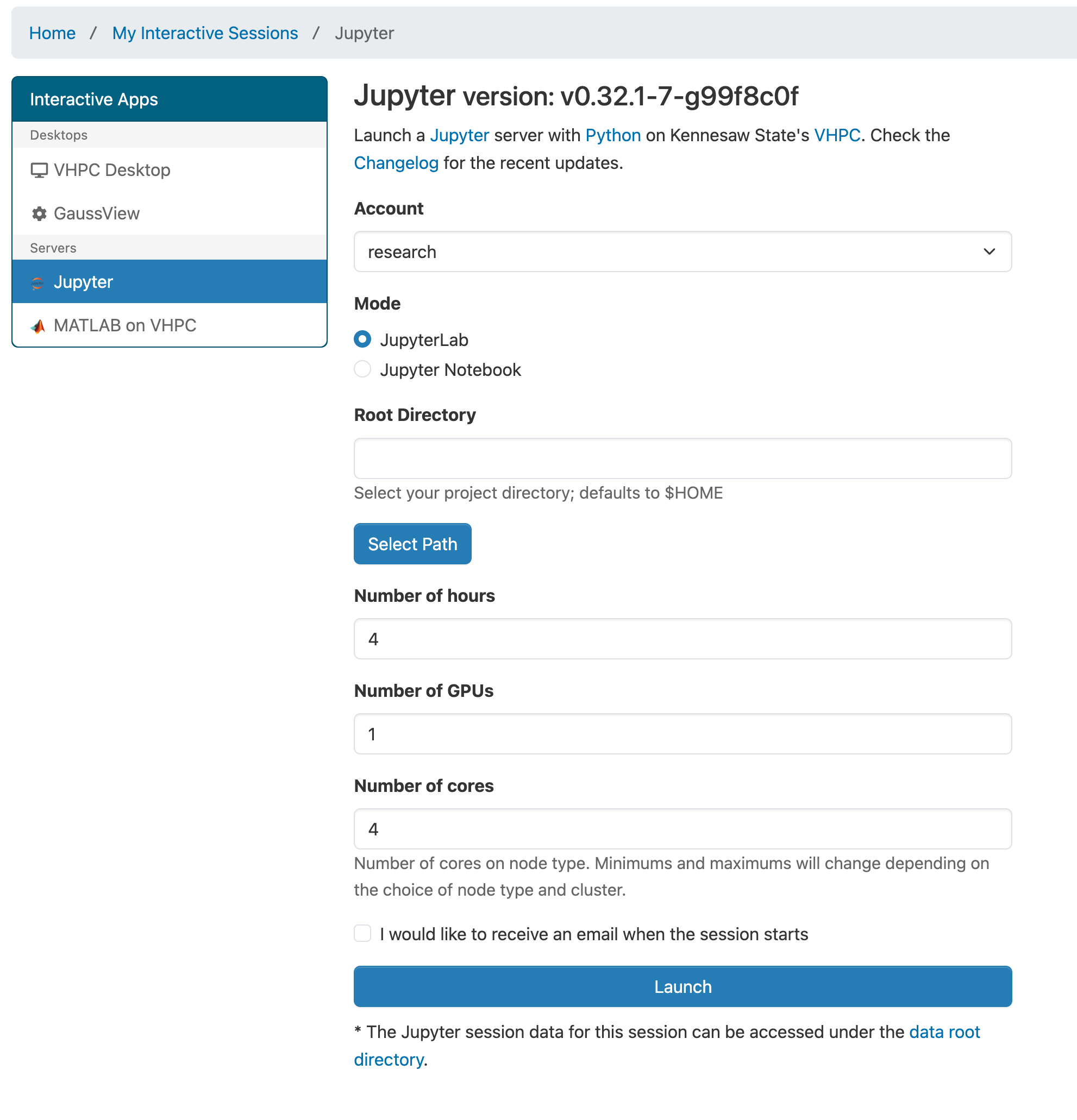
The Jupyter launch form allows you to choose how and where the session starts, along with the resources requested from Slurm.
Account
Select the Slurm account associated with the project or work being performed.
Only accounts available to your VHPC user account should appear.
Mode
Choose either:
- JupyterLab
- Jupyter Notebook
JupyterLab is the recommended interface for most users.
Root Directory
Choose the directory where Jupyter should begin.
If no directory is selected, Jupyter starts in your home directory.
Use Select Path to choose a different directory.
Number of Hours
Enter the maximum amount of time the Jupyter session should remain active.
The session ends when this time limit is reached, even if Jupyter is still open in your browser.
Number of GPUs
Enter the number of GPUs required for the session.
Use 0 if your work does not require a GPU.
GPU requests may wait longer in the queue because GPU resources are more limited.
Number of Cores
Enter the number of CPU cores required for the session.
Request only the resources your workload is expected to use.
Email Notification
Select I would like to receive an email when the session starts if you want Slurm to notify you when the session begins.
After completing the form, select Launch.
Open OnDemand submits the request to Slurm and displays the session under My Interactive Sessions.
The session initially appears as Queued while it waits for Slurm to assign the requested resources.
When the session reaches Running, select Connect to Jupyter.
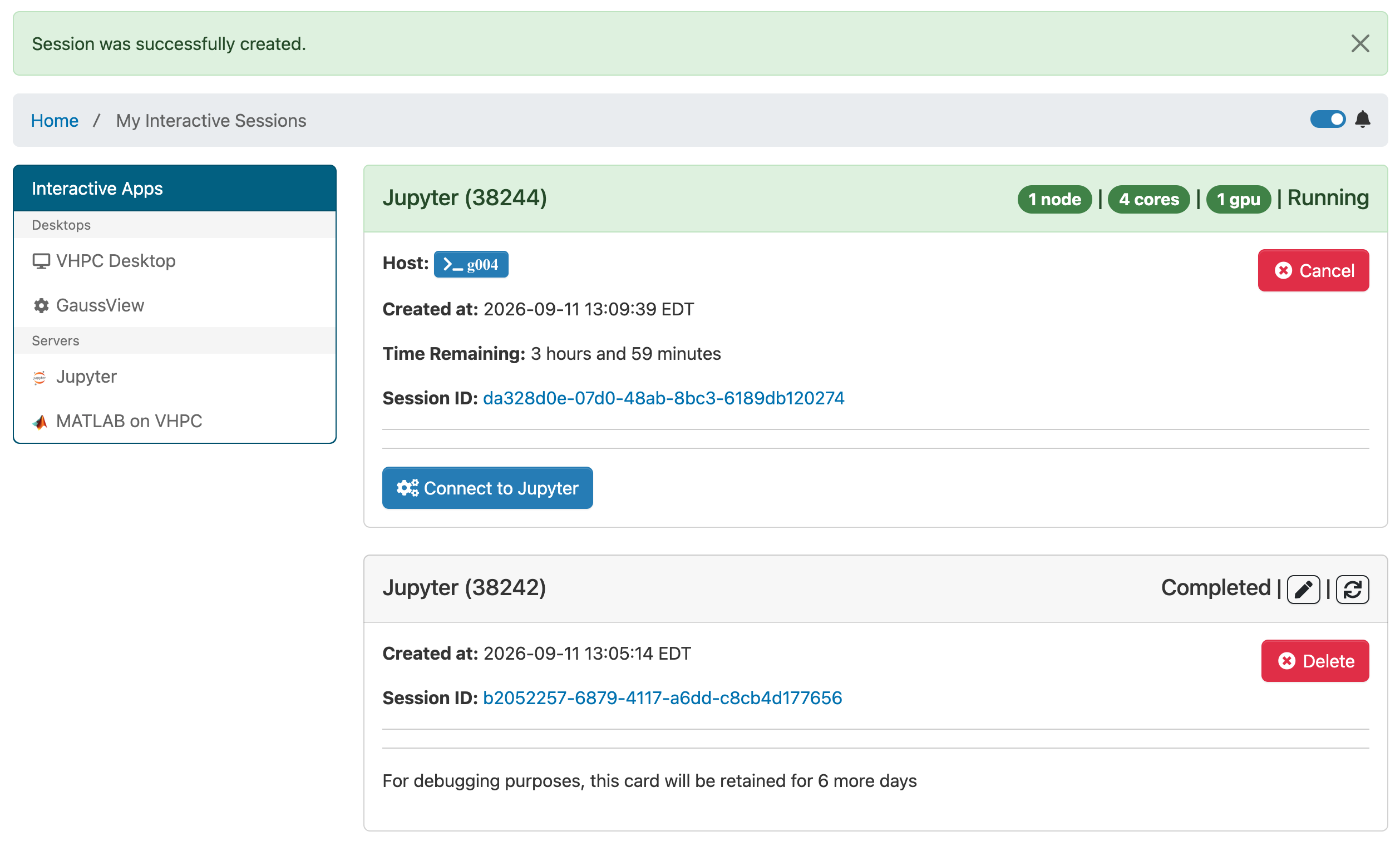
Jupyter opens in a new browser tab.
Choose a Kernel
After Jupyter opens, select the kernel appropriate for your workload.
VHPC provides several preconfigured system kernels for common scientific and machine-learning software stacks. Available kernels may include:
- BioPython
- PyTorch
- SciPy
- TensorFlow
The available kernels may change as software is updated or new environments are added.
Working in Jupyter
Once connected, you can create or open notebooks using the available kernels.
Save notebooks and other important files to persistent VHPC storage, such as:
- Your home directory
- Your Work directory
- Your Staging directory
- An approved project directory
Files stored only in temporary compute-node locations may be removed when the session ends.
Using Slurm Commands from a Notebook
If you need to run Slurm commands such as squeue, sbatch, sacct, or scontrol from within a Jupyter notebook, you may need to initialize the VHPC Slurm environment first.
module load slurm
This provides the Slurm command-line tools and the VHPC Slurm configuration needed to communicate with the cluster.
Reconnect to a Running Session
Closing the Jupyter browser tab does not stop the underlying Slurm job.
To reconnect:
- Return to Open OnDemand.
- Open My Interactive Sessions.
- Locate the running Jupyter session.
- Select Connect to Jupyter.
You can reconnect as long as the session is still running and has not reached its requested runtime limit.
End the Session
When you are finished:
- Save your work.
- Exit Jupyter normally when appropriate.
- Return to My Interactive Sessions.
- Select Cancel for the running session.
- Confirm the action.
Using Jupyter's own shutdown command may also stop the Jupyter process and cause the Open OnDemand session to complete.
After ending the session, verify that its state changes to Completed.
Warning
Closing only the Jupyter browser tab does not stop the Slurm job.
The job may continue running and holding allocated VHPC resources until it is cancelled or reaches its runtime limit.
Browser Notifications
Open OnDemand can use browser notifications to alert you about interactive-session events, such as when a session is nearing the end of its requested runtime.
Your browser must allow notifications from:
ondemand.kennesaw.edu
If notification permission is blocked, use the browser's site-permission settings to allow it before enabling notifications in Open OnDemand.
Legacy Command-Line Method
The older ksu-jupyter-lab command remains available for users who prefer to launch Jupyter manually and connect using SSH tunneling.
See Using the Legacy ksu-jupyter-lab Workflow.
Troubleshooting
My session remains queued
The requested resources may not yet be available.
GPU requests, large memory requests, or requests for many CPU cores may take longer to start.
Do not submit duplicate sessions while the original request remains queued.
Jupyter does not open
Confirm that the session has reached Running and that the Connect to Jupyter button is available.
If the session failed, record the session ID, Slurm job ID, and any visible error message before deleting the session card.
I closed the Jupyter tab
Return to My Interactive Sessions and reconnect.
Closing the browser tab does not normally stop the Jupyter session.
A Slurm command is not found
If commands such as squeue, sbatch, or sacct are unavailable from a notebook, load the VHPC Slurm environment:
module load slurm
My session ended unexpectedly
The session may have:
- Reached its runtime limit
- Exceeded its memory allocation
- Been cancelled
- Encountered a Jupyter or kernel error
- Experienced a compute-node or service problem
Review the session card and any application output files for additional information.
Next Steps
- Running Interactive Applications
- Manage files through Open OnDemand
- Use the web-based shell
- Using the Legacy
ksu-jupyter-labWorkflow
Getting Help
If a Jupyter session repeatedly fails, cannot be opened, or behaves unexpectedly, contact the Kennesaw State University Service Desk.
| Method | Students | Faculty/Staff |
|---|---|---|
| Web | ServiceNow | ServiceNow |
| studenthelpdesk@kennesaw.edu | service@kennesaw.edu | |
| Phone | 470-578-3555 | 470-578-6999 |
When reporting a problem, include:
- Your NetID
- The approximate date and time of the problem
- The Slurm account selected
- The requested resources
- The Slurm job ID, when available
- The interactive session ID, when available
- Any visible error message